Wanderlog running slow? Why it lags and how to fix it
Updated July 11, 2026
Wanderlog is a capable trip planner, and on a short weekend list it feels perfectly fine. The trouble starts when the trip gets big: dozens or hundreds of saved places, a few collaborators throwing in ideas, and weeks of days to fill. That is exactly the moment a lot of people hit a wall of lag, and it is one of the most repeated complaints across the app’s reviews. Actions that should be instant, like dropping a pin or opening a day, start to hang for seconds at a time.
The slowness is not random, and it is not a sign your phone is dying. Users trace it to how the app loads images, and it seems to get worse the more you have saved. Once you understand the likely cause, the fixes make sense, and just as importantly you can tell which fixes will genuinely help and which are only papering over the problem.
This guide walks through why Wanderlog slows down, the fixes worth trying in order, the separate half-screen-map annoyance that people often lump in with the lag, the upsell friction that makes it feel worse, and the point at which it is worth moving to a tool built from the start to stay fast on a big shared trip.
Why Wanderlog slows down
The most cited cause, and one that Wanderlog users have diagnosed themselves in reviews, is that the app reloads place photos from the internet every time you open it instead of keeping them cached on the device. Each saved place carries a thumbnail, sometimes several, and on a trip with a lot of pins that means a flood of image requests firing off before the interface settles. Until those finish, scrolling stutters, taps feel delayed, and adding a new place can freeze.
The problem compounds as a trip grows. A five-stop weekend barely notices it, but a two-week itinerary with well over a hundred saved spots has an order of magnitude more images to fetch, and the wait grows right along with it. Reviewers describe multi-second delays on each action once an itinerary gets large, and several report the web version locking up for long stretches on trips with hundreds of stops. Some go as far as saying it becomes almost impossible to add anything at all, which is the point where a planning tool has stopped doing its one job.
What people describe points to a loading and rendering issue rather than corruption or a hardware fault. That distinction matters, because it tells you where your leverage actually is: reducing how much the app has to fetch and render at once, and giving it the conditions to cache what it can while it can. Every fix below follows from that one idea, and it also explains why some of them only buy you a little relief rather than solving the thing outright.
Fixes to try first
Start by letting the photos finish caching. Open the trip on a strong, stable connection and give it a minute before you start tapping around, so the images have room to load instead of competing with your input. The first open of a big trip is always the slowest moment; later actions in the same session tend to feel smoother once that heavy lifting is done. It is not a cure, but it does take the edge off the worst of it.
Next, fully close and reopen the app rather than resuming it from the background. An app that has been suspended for a while can come back sluggish, holding stale state and half-loaded assets from before. A clean relaunch clears that out and often restores responsiveness for a good while. Pair this habit with keeping the app updated, because performance work does ship over time, and running an old build can mean missing a fix that addresses exactly what you are feeling.
If a single trip has simply grown too large, think about splitting or trimming it. Breaking one sprawling trip into a few shorter ones, or cutting the number of places per day, reduces how much the app has to hold and render at any moment. It is a genuine compromise, because part of the appeal was keeping everything together, but a leaner trip is a faster trip. Finally, try the other device: if the phone app is the one crawling, open the same trip on the web, or the reverse, and just use whichever is quicker for the task in front of you.
The half-screen map problem
A separate complaint often gets folded into the “Wanderlog is slow” bucket even though it is really about layout: the map takes up only about half the screen, with the itinerary list occupying the rest. When you are trying to see how your pins cluster across a city, giving half your view over to a list makes the map feel cramped and forces constant panning and zooming to take it all in.
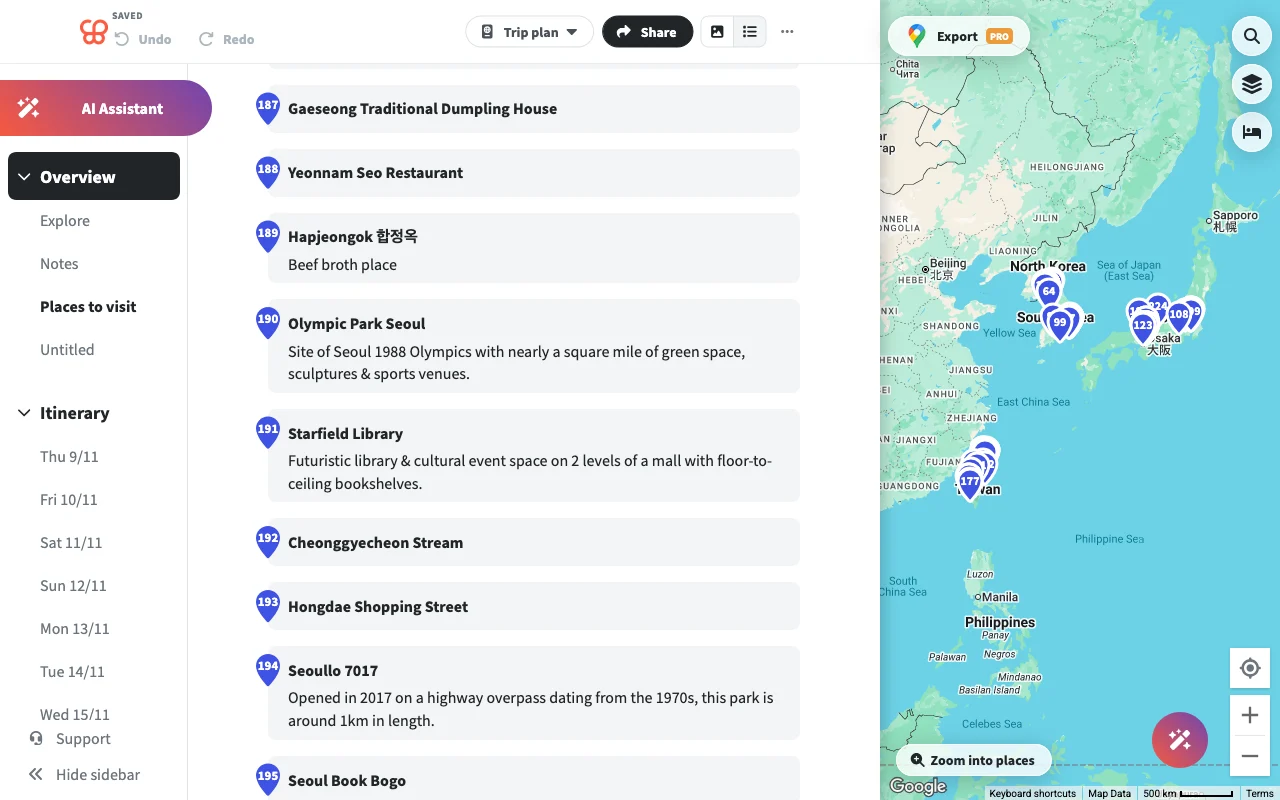
Where the layout allows, expand the map to full screen to get an overview, then switch back to the list to work through the details of each day. On the web there is usually more room to breathe than on a phone, so if the split is bothering you on mobile, the desktop view may sit better. Neither of these is a real fix though: the half-screen split is a design choice baked into how Wanderlog presents a trip, not a setting you can toggle off. If you think in maps rather than in lists, it will keep grating on you.
This matters more than it first sounds. For people who plan by geography, deciding what to do based on what sits near what, the map effectively is the plan, and a map you can only ever half-see works against that whole way of thinking. It is one of the clearest signals that the app is built list-first, with the map as a companion, rather than the other way around.
The upsells
This one is context rather than a fix, but it colours the whole experience. Reviewers repeatedly note that Wanderlog keeps surfacing upgrade prompts even after they have already paid, and that a few things you might expect to be standard, like offline maps and exporting your trip, sit behind a subscription. When the app is also lagging, being nudged to pay again adds friction on top of friction.
None of that makes anything faster, but it is worth weighing when you decide whether to keep pushing through the slowness or move on. If you are already paying and still fighting both lag and upsells, the value starts to look thin. For a lot of people that combination is the tipping point, and it is usually when they start looking at what else is out there.
When to switch to a faster, map-first tool
If the lag keeps getting in your way, especially on a big trip you are planning with other people, it may be time for a tool built from the start to stay fast. Places keeps a large map quick as it fills up, because it is designed around the map rather than treating it as a half-screen sidekick, and it does not make you sit through a fresh round of photo loading every time you open it. You get a full map, not a half one, and it stays responsive as the pin count climbs into the hundreds.
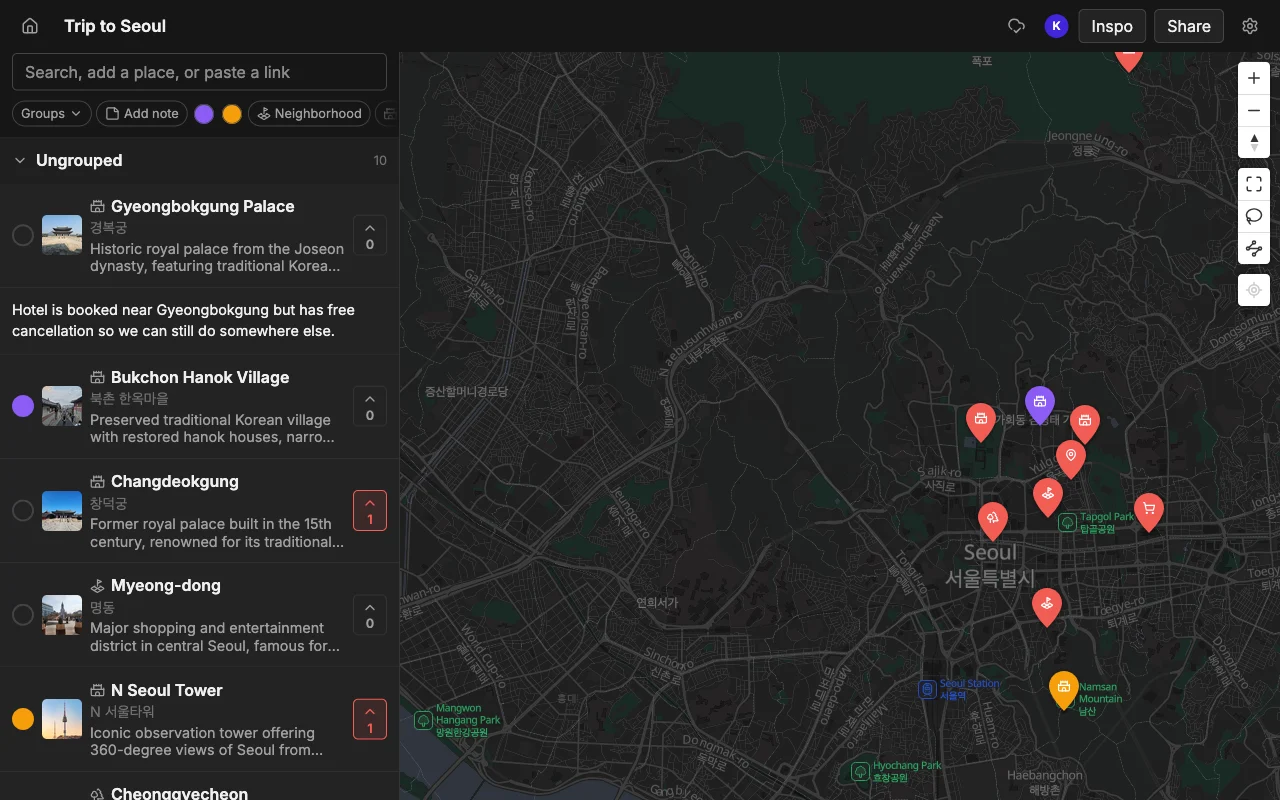
It is also built for a group from the ground up. Everyone edits the same map in real time on the web, iPhone, and Android, votes on which places make the cut, and leaves notes and colours on each spot so the reasoning stays visible to the whole group instead of getting buried in a chat thread. That combination, a fast full map plus live collaboration, is exactly the workload that makes Wanderlog struggle, which is why it is the natural place to land if speed on a shared trip is your sticking point. See the head-to-head in Places vs Wanderlog, or the wider field in best Wanderlog alternatives.
Moving your places over
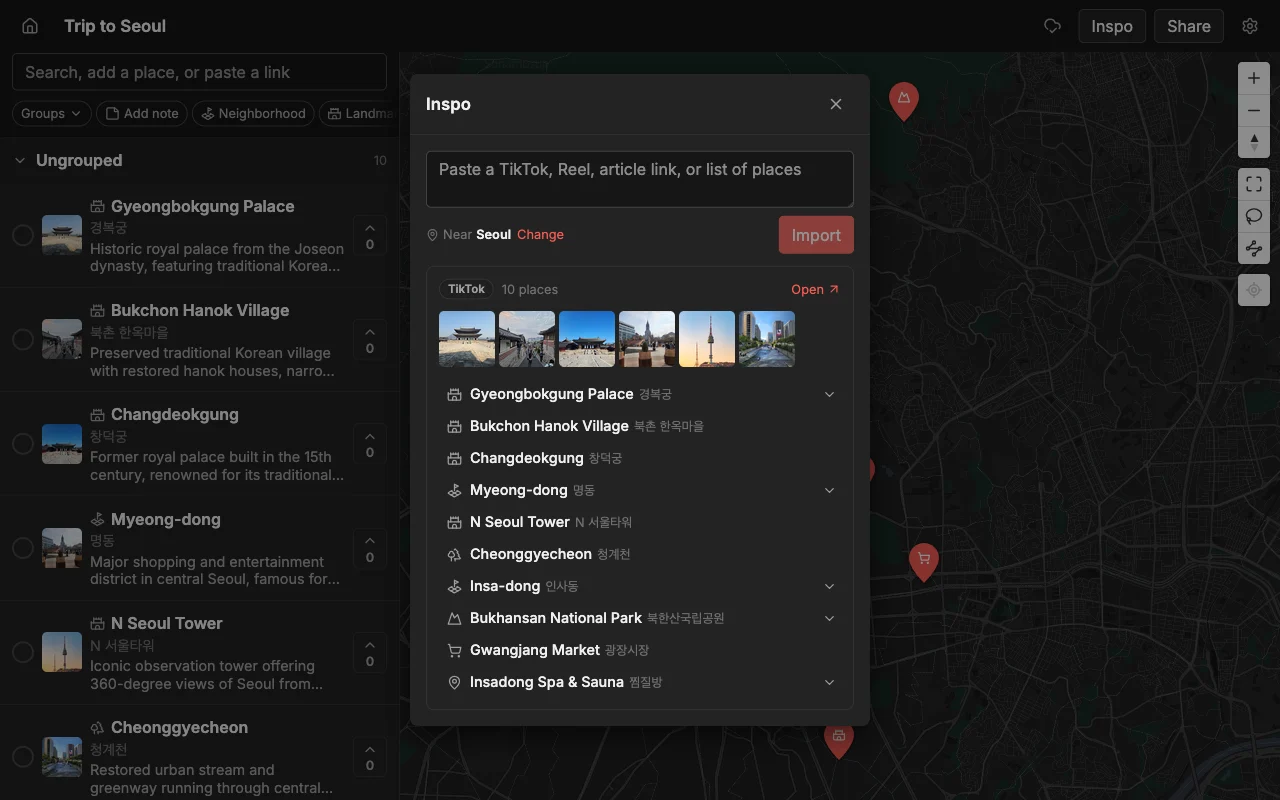
Switching does not have to mean rebuilding everything by hand. Places does not import from Wanderlog directly, so there is no one-click transfer, but the way most people gathered their places in the first place gives you a shortcut. If your spots originally came from TikToks, Reels, YouTube videos, or travel articles, pasting those links pins every place from them automatically, complete with a photo and a short description, and rebuilds the map in seconds rather than in an evening of copy-paste.
For anything that did not come from a link, a quick search adds it in a few taps. Because Places stays fast as the map fills up, you can move a big trip over without the dread of it slowing to a crawl on the far side. And once it is in, the whole group can edit it live, vote, and take notes, which is usually the reason people were looking for something quicker in the first place.
Frequently asked questions
- Why is Wanderlog so slow?
- The most cited reason is that it reloads place photos from the internet on every launch instead of caching them, so a trip with a lot of saved pins has to fetch a flood of images before it feels responsive. The effect compounds as the trip grows, which is why big itineraries lag the most.
- Does closing and reopening Wanderlog fix the lag?
- A clean relaunch helps, because it clears stale state and half-loaded assets that build up when the app sits in the background. It is a reliable first step, but on a very large trip the reported photo-loading slowdown tends to return, so treat it as relief rather than a cure.
- Why does the Wanderlog map only take up half the screen?
- That is a layout choice, not a bug or a setting. The itinerary list is meant to sit beside the map, so the map is boxed into roughly half the view. You can expand it to full screen in places, but you cannot make the split-screen behaviour go away.
- Will splitting my trip into smaller ones make it faster?
- Usually yes. Fewer places per trip means fewer photos and pins to load and render at once, so each smaller trip feels lighter. The trade-off is losing the single-trip overview, so it is a workaround rather than an ideal fix.
- Is there a faster alternative to Wanderlog for big trips?
- A map-first tool that does not reload every photo on launch will feel quickest on a large, shared trip. Places is built around that: a full-screen map that stays fast as it fills, with live group editing and voting. See Places vs Wanderlog or the best Wanderlog alternatives for the full comparison.