How to turn a YouTube travel video into a map of places
Updated July 11, 2026
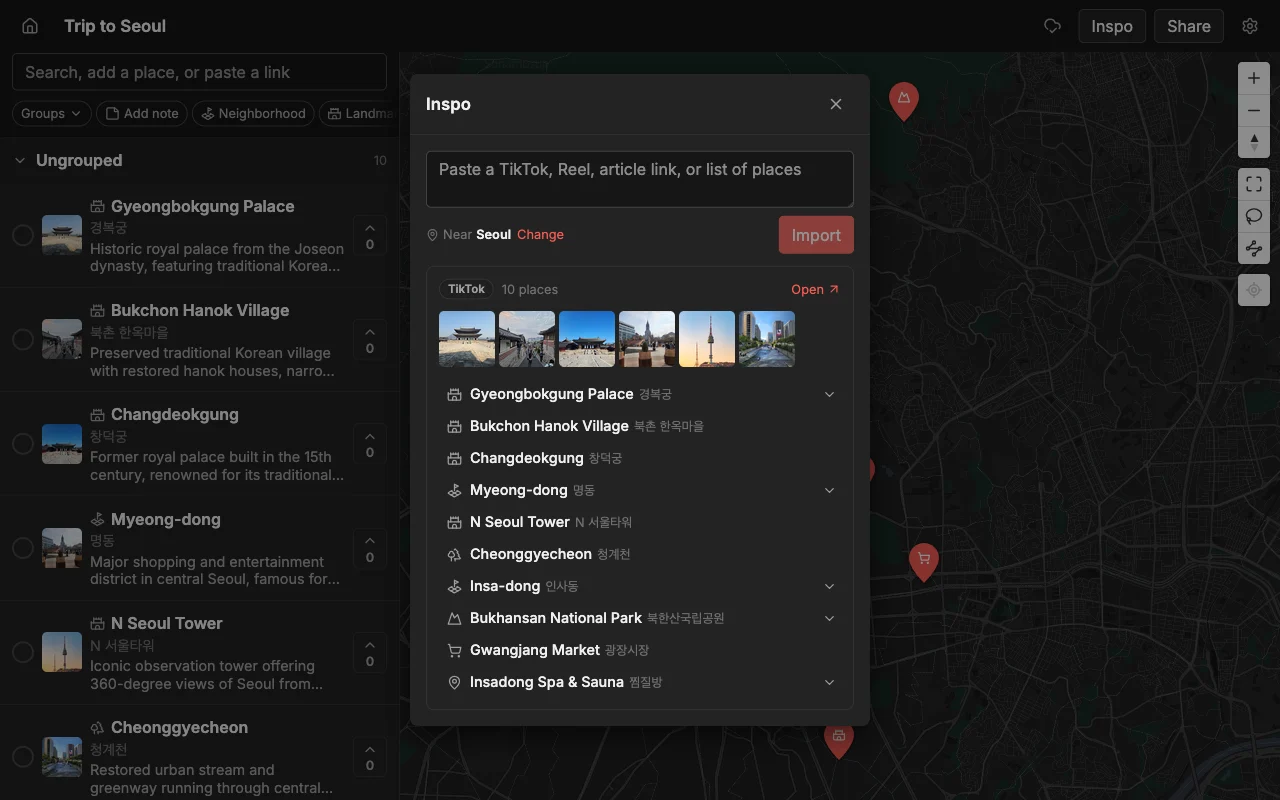
A good YouTube travel guide is a goldmine and a chore at the same time. A single “48 hours in Rome” or “where to eat in Osaka” video can name a dozen or more places across a city, complete with the host’s honest take on each one. The problem is getting those names out of a fifteen-minute video and onto something you can navigate by. Watch-and-pause your way through it and you are scrubbing the timeline, guessing at the spelling of a restaurant in another language, and searching each spot in a maps app by hand.
Places turns that video into a map for you. Paste the link and it finds the places the video names and drops each one on a shared map with a photo and a short note, so you end up with a real map in seconds instead of a page of names to look up. From there it is a plan you can organize, share with the people you are traveling with, and open on your phone during the trip.
This guide compares the manual way with the paste-a-link way, shows what you get for each spot, and explains how the same trick works for the TikToks, Reels, and articles that make up the rest of your research. Whichever way you found a place, it can end up on one map.
The manual way, and why it is slow
The do-it-yourself approach goes like this: open the video, turn on the transcript, read down it picking out the place names, then search each one in Google Maps and save it to a list. It genuinely works, and if a video only names two or three spots it is fine to do by hand.
It falls apart on the videos that are actually worth the trouble. A 15-minute city guide can mention 20 places, and the transcript rarely spells them cleanly, especially names in another language or with accents the auto-captions mangle. You end up cross-checking spellings, disambiguating three restaurants that share a name, and losing your place in the transcript every time you tab away to search. Twenty minutes of admin later you have a list, and you still have to lay it out on a map to see how any of it connects.
The deeper problem is that a list of saved places is not a plan. It does not tell you which two spots are on the same street or which one is an hour outside town. That is the work the manual method quietly leaves for later, and it is exactly the work a map does for you the moment the pins land.
Turn a YouTube link into pins with Places
The faster route is a single paste. Copy the video’s URL from the address bar or the Share button, open a map in Places, and paste the link into the add bar. Places finds the places the video names and drops each one on the map with a photo and a short description already filled in. On a long guide the pins land a few at a time as it works through it, so you can watch the map of the city build itself.
You get a finished pin for every spot, not just a name:
- The place name and its real location, on the correct point on the map.
- A photo, so you recognize the spot later instead of decoding a name.
- A short description of what it is.
- A color you can change to sort it into food, views, coffee, and so on.
The import handles the things that trip up manual searching: places written in another language, and common names shared by several spots in the same city. The pin lands where the host actually meant, not on the first same-named result a search box happens to return.
Make it a plan you can share
Raw pins are a good start, but the value is in shaping them. Reorder the pins into the order you would actually visit them, sort them into lists like Food and Views, recolor them so categories stand out, and add your own notes to each one, like “host said skip the pasta, get the pizza”. Groups and colors turn twenty pins into a map you can read at a glance.
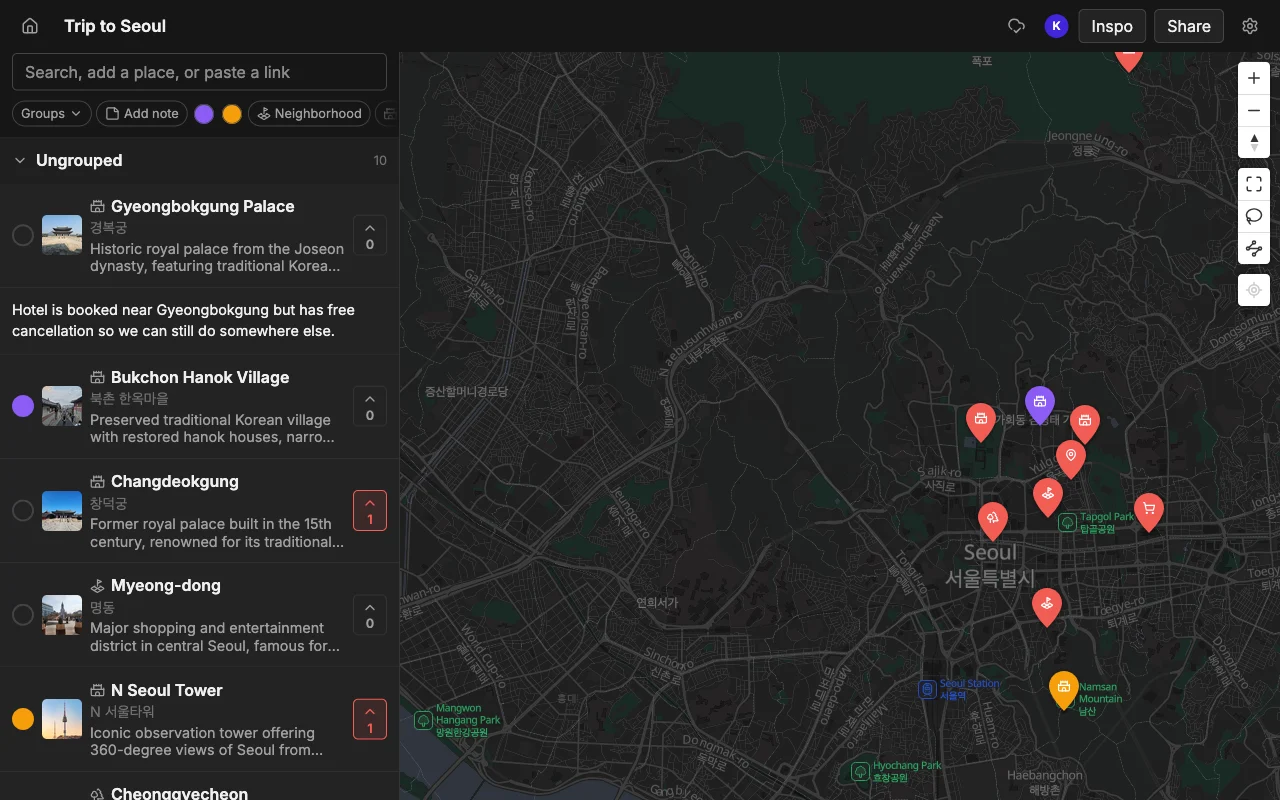
Then share it. Send a read-only link and anyone can open the full map in a browser with no account, or invite friends to edit so the whole group adds their own finds. Edits sync in real time, so people can add spots, vote on where to actually go, and leave notes, all on one live map that works on the web, iPhone, and Android. Nobody is texting screenshots or asking which version is current.
The map keeps earning its keep once you are there. Open it on your phone as you walk the city and drop a pin on anything you pass, and when you want directions, export the map to KML to open it in Google Maps, or to CSV or PDF if you want the list in another form. The video you watched on the couch becomes the map you navigate the trip with.
Works for TikTok, Reels, and articles too
YouTube is only one source. The same paste-a-link trick works for a TikTok, an Instagram Reel, or a written travel guide, so wherever you found the spots, they land on the same map. Most trips are researched across all of those at once: a YouTube guide for the overview, a few Reels for the food, an article for the neighborhood you are staying in. Paste them all into one map and the picks collect side by side instead of scattered across four apps.
It is worth knowing that not every app that imports from social video is as flexible about where you use it. Some, like Plotline, import YouTube and social clips but run on the iPhone only, with no web or Android. Places runs on the web, iPhone, and Android and stays in sync across all three, so you can paste a link on your laptop and pick the map back up on your phone at the airport.
Frequently asked questions
- How do I turn a YouTube video into a Google Maps list?
- Import the video into Places first, then export the finished map to KML and open it in Google Maps. It is far quicker than reading the transcript and saving each place by hand, and you keep an editable, shareable copy in Places.
- Does it work on any travel video?
- It works best on videos that actually name real places, like city guides, food roundups, and "where to stay" videos. A cinematic montage that never says a place name has nothing specific to pin, but a normal talking guide is exactly what it is built for.
- How many places can it pull from one video?
- However many the video names, whether that is three or thirty. A longer guide simply drops more pins, and they all land on the same map for you to sort.
- What if it misses a spot or gets one wrong?
- If a name was mumbled or only shown on screen, you can add or fix it by hand with a quick search in a couple of seconds, and every other place still imports normally. Skimming the finished map against the video once is a good habit.
- Do my friends need an account to see the map?
- No. A read-only link opens in any browser with no account. People only need one if you invite them to edit the map with you.
- Is it free?
- Yes. Places is free to start, with unlimited maps, places, and collaborators, so you can turn as many videos into maps and invite as many people as your trip needs.