Can you edit Google My Maps on your phone? (And a mobile-first alternative)
Updated July 11, 2026
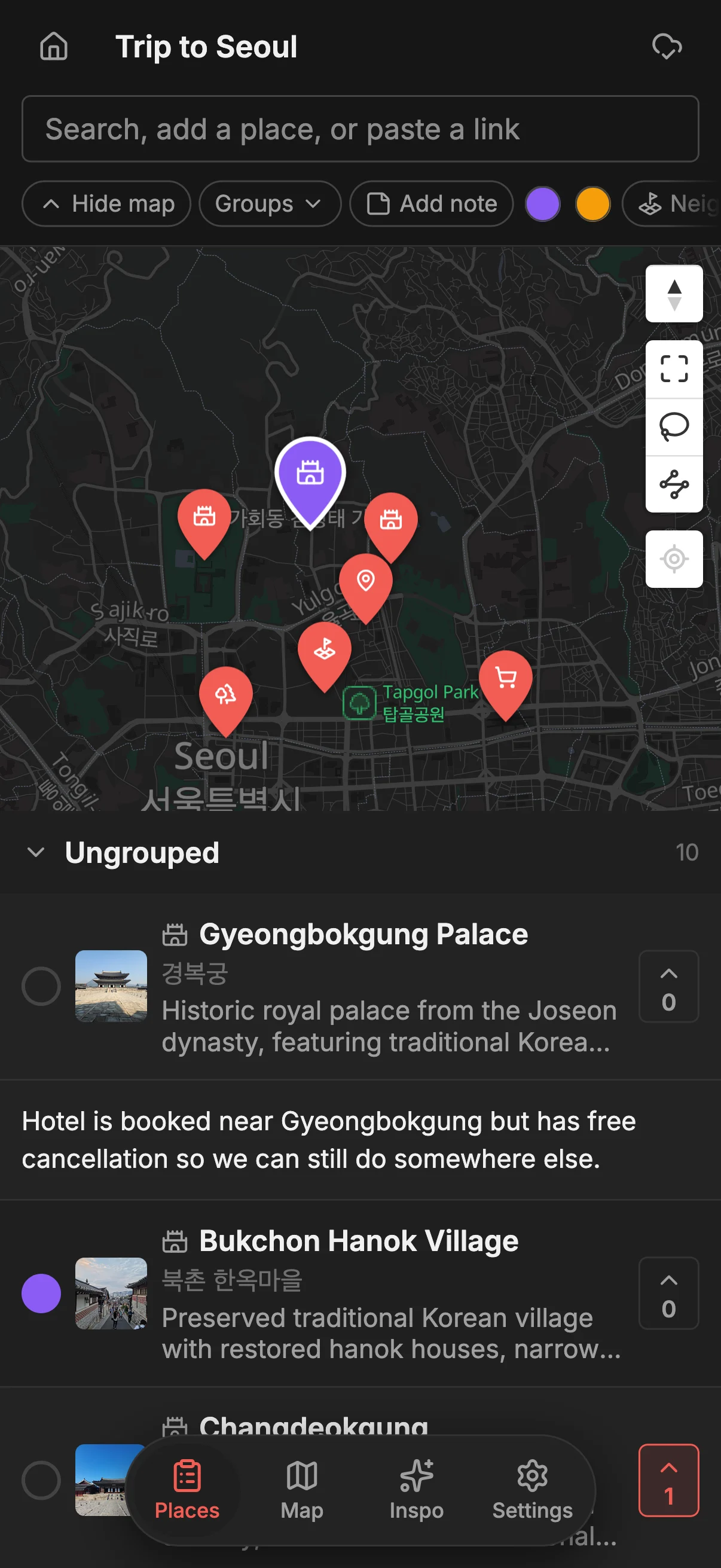
If you have spent ten minutes tapping around the Google My Maps app trying to add a single pin from your phone, only to find no way to do it, you have not missed a hidden setting and you are not doing it wrong. My Maps editing is desktop only, full stop. On mobile you can look at a custom map you already built, but you cannot change it. That surprises almost everyone, because My Maps otherwise does a lot on a computer.
It stings most on a trip. My Maps does more on a computer: several people can edit one custom map, with custom layers, styled pins, lines, and shapes, all on one detailed map. It is not live like Google Docs, so collaborators refresh to see each other’s changes, but it is genuinely editable by a group at a desk. So you build a detailed plan at your desk, then walk out the door, discover a place worth adding, reach for your phone, and hit a wall. The one moment you most want to edit the map is the one moment you cannot.
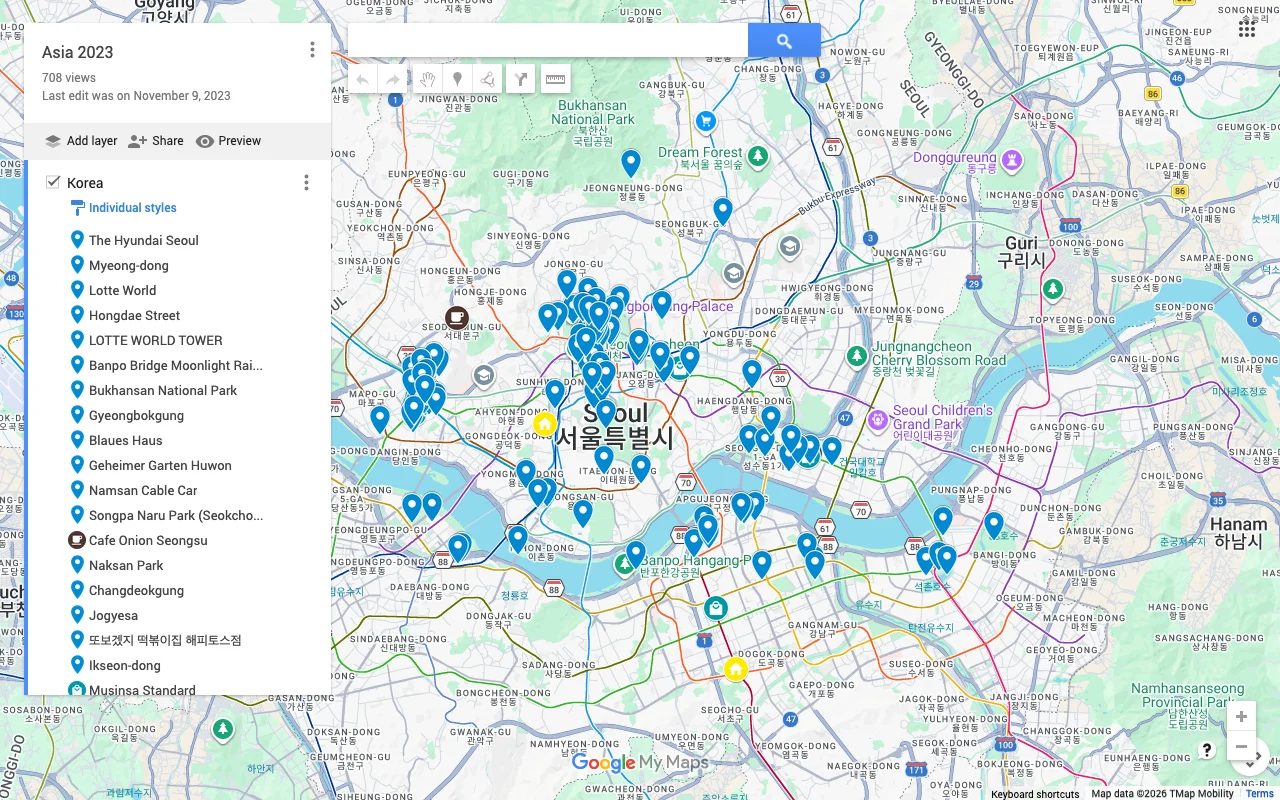
This guide explains exactly what My Maps can and cannot do on a phone, why Google built it that way, and which workarounds are worth trying.
What My Maps can do on a phone
On a phone, both the My Maps app and the mobile web view are essentially read-only viewers. You can open a custom map you built on desktop, pan and zoom around it, tap a pin to see its name and description, and follow the layers you set up. If your goal is to reference a map you already made, for example pulling up a walking tour you planned last night, mobile handles that fine.
What you cannot do is any kind of editing. You cannot add a new place, move an existing pin, rename anything, restyle a layer, or delete a spot. Every one of those actions requires a desktop browser. Google also discontinued the dedicated My Maps Android app back in 2021, so even the app that used to give a slightly richer mobile experience is gone, and what remains is a viewer. There is no toggle, no edit mode, and no account tier that unlocks mobile editing, because the capability is simply not built into the mobile experience.
It is worth being precise here, because people often confuse two different Google features. Regular Google Maps lists, the ones you save spots to and can share with friends, are editable on a phone. My Maps, the custom-map builder with layers and styling, is not. If you can edit it from your phone, you are almost certainly in a list, not in My Maps.
Why that is a problem for trips
The whole rhythm of a trip is that you find places while you are out in the world, not while you are sitting at a laptop. A cafe you walk past and want to remember, a bar a friend mentions over dinner, a viewpoint someone at the hostel swears by. These arrive at unpredictable moments, and the natural instinct is to capture them right then on the phone that is already in your hand.
With My Maps, you cannot. Your only option is to hold the place in your head, or jot it somewhere else, and add it to the map later from a computer. In practice that means the good spots leak away. You forget the name, you lose the note, you get back to the laptop three days later and cannot remember which cafe it was. The map that was supposed to be the single source of truth for the trip slowly drifts out of date, because the tool cannot keep up with when and where you actually plan.
The problem compounds when you are planning as a group. If several people are contributing places, and none of them can add anything without opening a laptop, the map stops being a live shared surface and becomes something one person maintains after the fact. That defeats the point of a collaborative map, which is that everyone can throw their own spots on it in the moment.
The workarounds, and why they fall short
The most common workaround is to switch to a Google Maps list, which you can edit on mobile. You save pins to a list from your phone while you are out, and the idea is to fold them into your My Maps map later. It sort of works, but lists are a completely separate feature from My Maps: they do not carry your layers, your custom styling, your shapes, or the structured notes you set up on desktop. You end up maintaining two disconnected things and reconciling them by hand, which is more work than it saves.
Another approach is to just carry a laptop and edit My Maps in a mobile browser at desktop scale, but anyone who has tried to drag pins around a full desktop web app on a phone screen knows how painful that is, even when it technically loads. Tethering the laptop, finding wifi, and squinting at a cramped interface is not something most people will do mid-trip. It turns a two-second capture into a ten-minute chore, so it does not happen.
You can also try to remember places and batch-add them at the end of each day from a computer back at your accommodation. This is the most realistic of the workarounds, but it relies on your memory holding up and on you actually sitting down to do the data entry, and it means the map is never current during the day when you and your group are making decisions about where to go next.
Edit a shared map from your phone with Places
Places starts from the opposite assumption: the phone is the primary place you edit, not an afterthought. You can add a place, reorder your list, set a color, and write a note directly from your phone, and everyone on the map sees the change live. When you walk past that cafe, you pin it in a couple of taps right there, and it is on the shared map before you have crossed the street. It runs on the web and Android too, so the whole group can edit from whatever they carry, and nobody is stuck waiting for the one person with a laptop.
Because it was built mobile-first, the things that are awkward or impossible in My Maps on a phone are the ordinary path here. Real-time collaboration means several people can add spots at once and each sees the others’ pins appear without refreshing. Each place holds a note and a color so you can flag a must-do versus a maybe, and you can vote on places so the group can actually decide where to go rather than debating in a separate chat. Everything lives on one map you can all see and edit, rather than split between a desktop-only custom map and a separate mobile list.
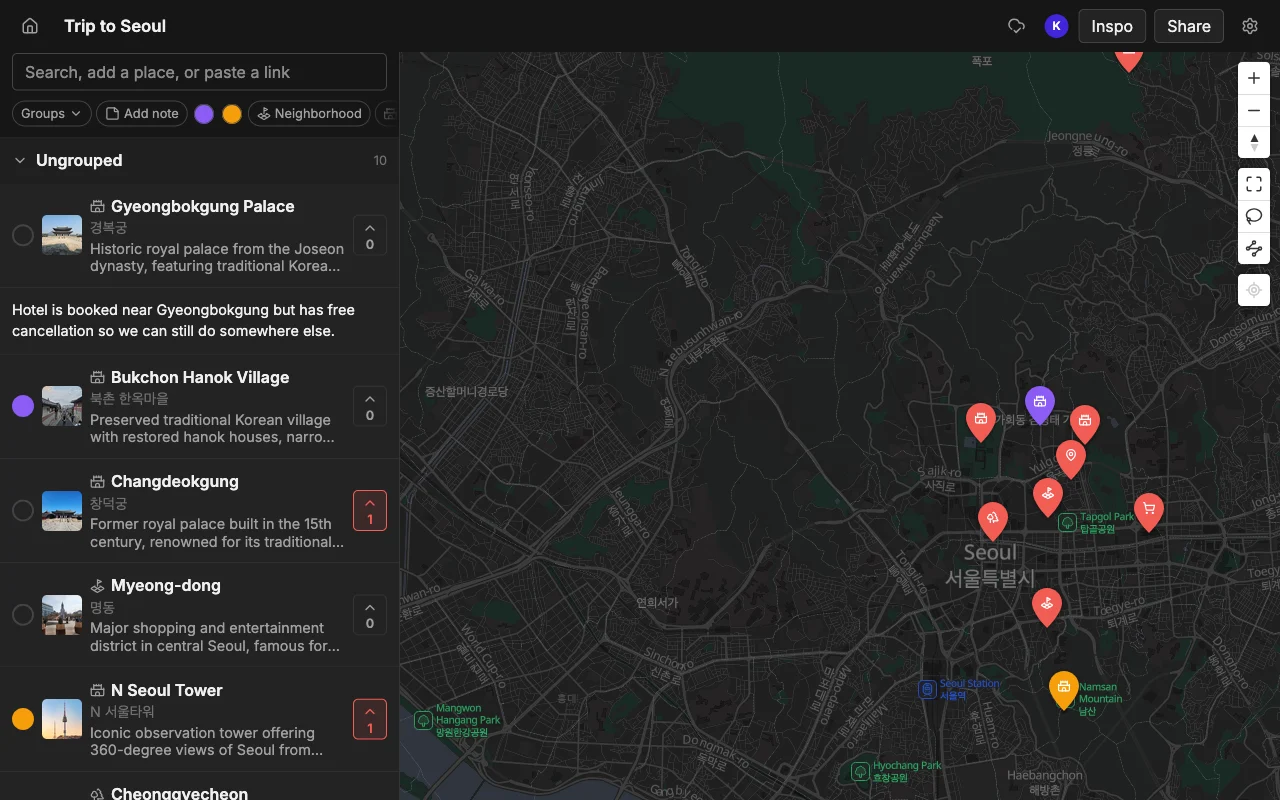
Adding places is also faster than pinning each one by hand. You can paste a link from TikTok, a Reel, a YouTube video, or an article, and every place mentioned gets dropped onto the map automatically with a photo and a short description, which is ideal when a friend sends you a video full of recommendations. Search works the normal way when you want to add a single spot. And when the plan is set, you can export the map to KML, CSV, or PDF, with the KML opening straight in Google Maps for anyone who wants to navigate there. It is free to start, with unlimited maps, places, and collaborators.
Frequently asked questions
- Can you edit Google My Maps on an iPhone or Android phone?
- No. My Maps editing is desktop only. On both iPhone and Android you can view a custom map you already built, but you cannot add, move, rename, restyle, or delete anything. The dedicated My Maps Android app was discontinued in 2021, and the mobile web view is read-only for editing.
- Is there a My Maps app for phones?
- Not anymore. Google discontinued the dedicated My Maps Android app in 2021, and there is no iOS equivalent that lets you edit. What remains on mobile is a viewer for maps you created on a computer.
- What is the difference between Google My Maps and a Google Maps list?
- My Maps is a desktop-only custom-map builder with layers, styled pins, lines, and shapes, and it supports multi-person editing on a computer, though not in real time: everyone has to refresh to see others' changes, and simultaneous edits can overwrite one another. A Google Maps list is a simpler collection of saved places that you can edit and share from your phone, but without layers, styling, or true live sync. They are separate features and do not share their data. See can you edit a Google Maps list with friends? for how lists behave.
- How do I add a place to a custom map from my phone?
- With My Maps you cannot, so the usual workaround is to save the spot to a Google Maps list on your phone and merge it into your map later from a computer. If you want to add places to a shared custom map directly from your phone, use a mobile-first tool like Places, where pinning a spot on the spot is the normal flow.
- What can I use instead of My Maps to edit a map on mobile?
- Places is built for exactly this: add, reorder, color, and note places from your phone, on web, iPhone, or Android, with everyone seeing changes live. You can also paste a TikTok, Reel, YouTube video, or article to add places automatically, and export to KML that opens in Google Maps. See how it compares in Places vs Google Maps lists.