Can you edit a Google Maps list with friends? What works and what doesn't
Updated July 11, 2026
Yes, you can edit a Google Maps list with friends. The feature exists, it is free, and on paper it does what you would expect: you save a list of places, invite a few people, and let them add their own spots. If you are planning a weekend away or building a running list of restaurants to try, that sounds like exactly the right tool. Millions of people reach for it every week for precisely this reason.
The gap between how it sounds and how it feels in practice is where the frustration lives. Collaborative lists were bolted onto a product designed for one person navigating from A to B, and it shows. Edits do not appear live, invites frequently drop people into a read-only view, and the parts of group planning that actually matter, like deciding together which places make the cut, are missing entirely. None of these are things you did wrong. They are limits of how the feature is built.
This guide walks through what genuinely works when you share a list, where it tends to break, and the things it simply cannot do no matter how carefully you set it up.
How Google Maps list sharing works
Open the Google Maps app, go to Saved, and open one of your lists or make a new one. Tap the share icon and you get two choices: invite people to view, or invite them to edit. Anyone you invite to edit can add and remove places, and can leave a short note on a spot. So the collaborative feature is real, and for a small, patient group it can carry a simple trip.
The setup is quick. You add places by searching and tapping Save, then choosing the shared list. Everyone who has edit access sees a combined list of pins, and each person’s additions land in the same place. For a short list of a handful of restaurants or sights, this is often all you need, and it costs nothing beyond a Google account.
The catch shows up at the invite step. The link or email people receive often reads View on Google Maps rather than something that signals edit access, so invitees tap through and land in a read-only view even when you meant to give them full permission. They see the places but cannot add their own, and because nothing on screen explains why, most people assume the list is just not editable and give up. The permission was granted; the interface simply did not make it usable.
Where it gets frustrating
The single biggest issue is that edits are not reliably real-time. When a friend adds a place, you will very likely not see it until you close and reopen the app, or pull to refresh, and sometimes not even then until you sign out and back in. If two people are adding spots at the same time while sitting across a table, the experience is nothing like a shared document updating live. You are each working on a slightly stale copy and hoping it reconciles.
On top of the refresh problem, edit access itself is unreliable. Even after you explicitly grant someone editor rights, people commonly report being stuck read-only, unable to add anything, with no error to explain it. This is a known bug with open threads across the Google Maps help forums going back years, and the usual fixes (re-sharing, having them sign out and in, confirming the account) work only sometimes. Edit permissions can also quietly drop on their own, so a list that worked last week silently reverts and you have to re-share it.
Then there are the lists that never arrive. A shared list sometimes does not show up in the other person’s Saved tab at all, even when they accepted the invite and are on the correct account. There is no obvious status to check, no pending-invite screen, and no way to resend that reliably fixes it. When a tool’s core job is to get a list in front of another person, and that step fails silently, the whole thing stops being trustworthy for planning anything that matters.
What a shared list still can’t do
Even when sharing works perfectly, the feature set is thin for real group planning. These are not bugs that a future update might fix. They are things the design does not include:
- You cannot copy a shared list into your own editable version. You can only follow it, which means it stays someone else’s list and you cannot fork it, rename it, or trim it down for your own trip.
- You cannot search within a list, so once it grows past twenty or thirty places, finding a specific spot means scrolling. On iOS you also cannot sort a list alphabetically, which makes a long list genuinely hard to scan.
- There is no voting, so a group has no built-in way to decide. You end up settling it in a separate group chat, which is exactly the fragmentation the shared list was supposed to prevent.
- Public lists are gone. Google discontinued them in November 2023, so there is no real discovery of other people’s curated lists anymore, and any public list you built before then is no longer shareable that way.
- The map view is buried. A list is presented as a scrolling column of names, and seeing all your pins together on the map takes extra taps, even though the map is the whole point of planning geographically.
Google My Maps lets you co-edit, but not live, and only on a desktop
If you want several people to genuinely edit one map, Google does have a better tool for that than saved lists: My Maps. Multiple people can edit the same custom map, with custom layers, styled pins, lines, and shapes. The catch is that it is not live: changes do not sync automatically, so everyone has to refresh to see what others added, and two people editing at once can overwrite each other. For building a detailed map at a desk, it is still more capable than a saved list.
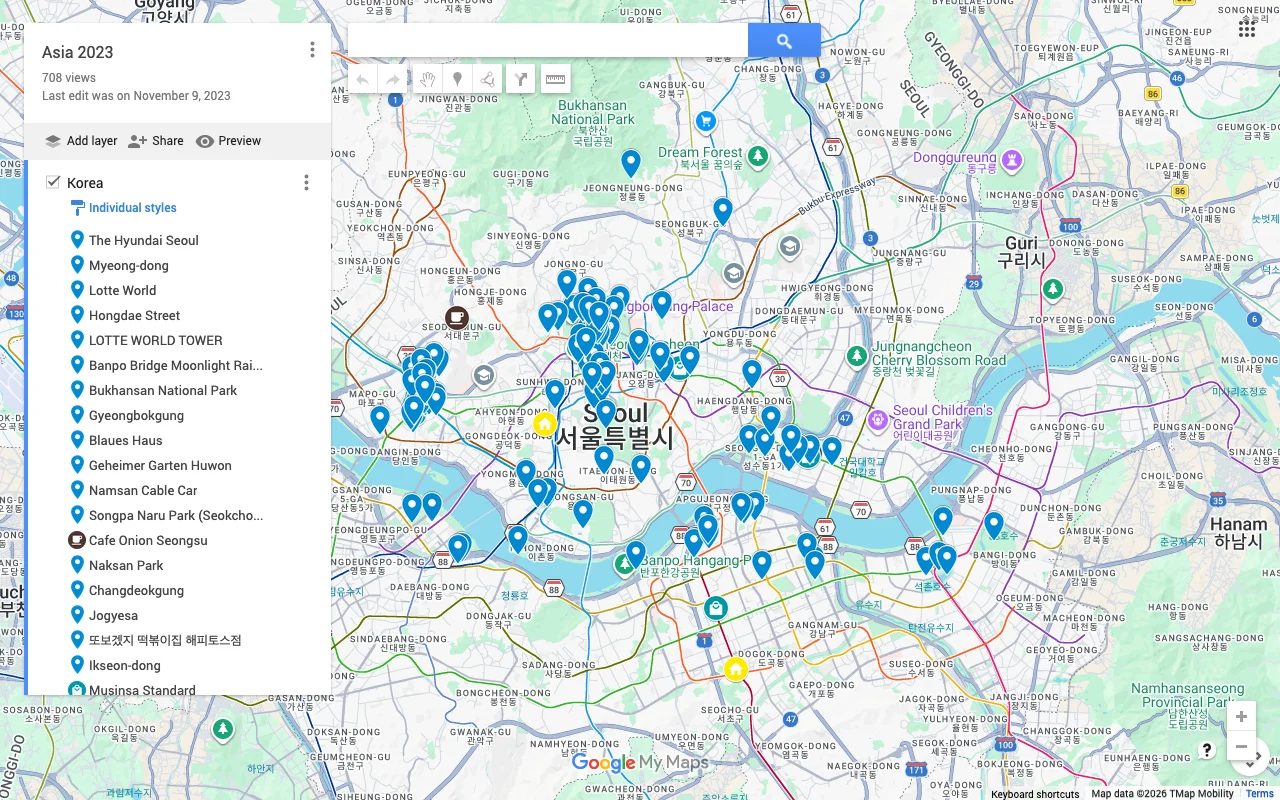
The problem is where you can use it. My Maps editing is desktop only. You cannot edit My Maps on your phone, which is exactly the moment you tend to find new places, standing outside a cafe or hearing a recommendation at dinner. The dedicated My Maps Android app was discontinued in 2021, and the mobile web view lets you look but not change. My Maps also caps out at 10 layers and 10,000 items per map, which most trips never hit, but it signals that this is a mapping tool rather than a lightweight shared planner. So you are choosing between a list that works on your phone but is not live, and a map that is live but chains you to a laptop.
A live shared map that works on your phone
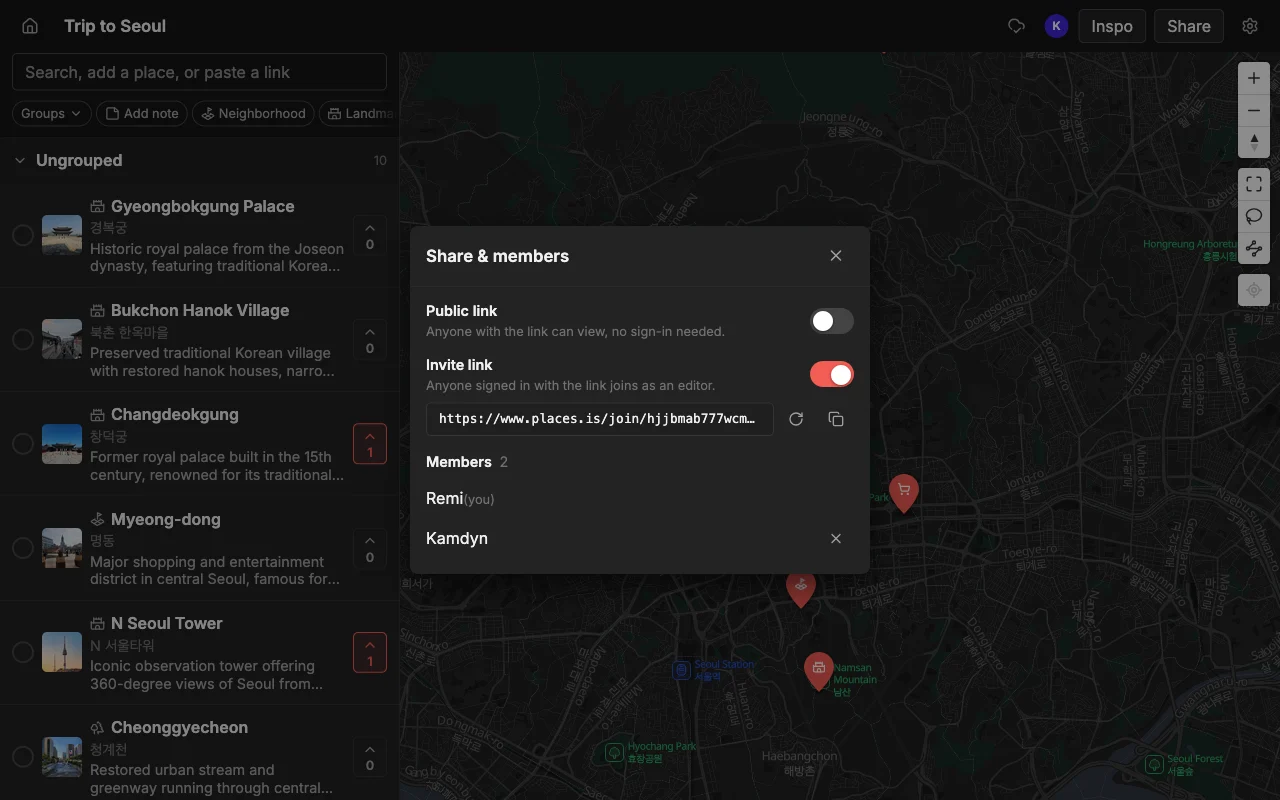
This is the gap Places is built to close. Everyone edits the same map in real time on the web, iPhone, or Android, and changes appear as they happen, so two people adding places at the same table actually see each other’s pins without refreshing or signing out and in. There is no ambiguous invite that traps people read-only: you either share a read-only public link that anyone can open without an account, or you invite people to edit and they can edit.
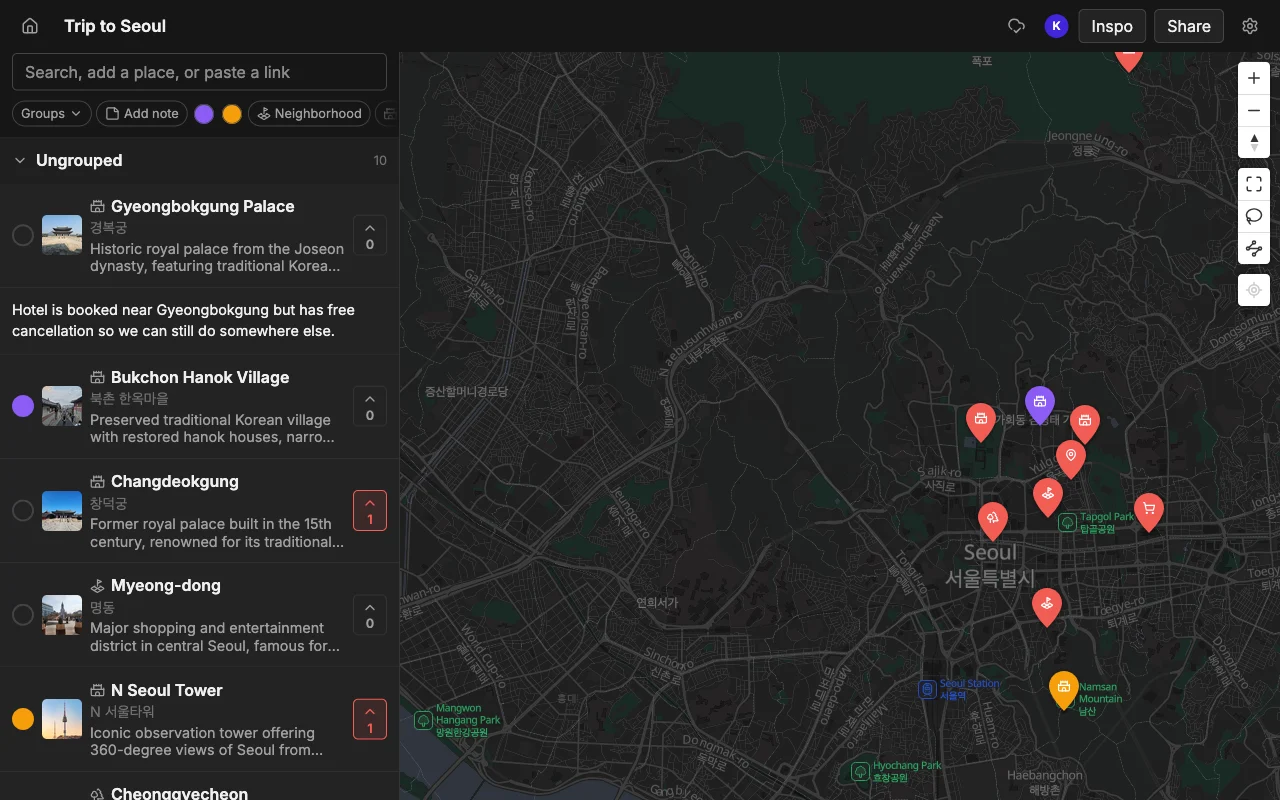
Because it was designed for deciding as a group, it includes the parts Google’s lists leave out. You can vote on places so the group has a built-in way to narrow a long list down to a plan, and each place carries a note and a color so you can mark what is a must-do versus a maybe. Places are organized into groups or lists within a single map, so a trip with a food list, a sights list, and a day-two list all live in one place instead of scattered across separate shared lists.
Adding places is faster too. Instead of searching and saving each spot one at a time, you can paste a TikTok, a Reel, a YouTube video, or an article, and every place mentioned gets pinned automatically with a photo and a short description. When you do want to add something by hand, search works the way you expect. And when the plan is set, you can export it to KML, CSV, or PDF, and the KML opens straight in Google Maps if someone on the trip still prefers navigating there. It is free to start, with unlimited maps, places, and collaborators.
To see the tradeoffs side by side, read how Places compares to Google Maps lists, or if you just want the sharing part sorted, how to share a travel map friends can actually edit.
Frequently asked questions
- Can multiple people edit the same Google Maps list?
- Yes. As the list owner you can invite people as editors, and each editor can add and remove places. The friction is not whether it is possible but whether it works smoothly: invites often land people in a read-only view, edits are not real-time so everyone has to refresh, and edit access can quietly drop, forcing you to re-share.
- Why can my friend only view my Google Maps list, not edit it?
- Almost always because the invite defaulted to view access, or the email they opened read View on Google Maps and dropped them into a read-only mode. Set their role to editor explicitly and re-share, make sure they are signed into the exact Google account you shared with, and have them open the invite from the original email rather than a forwarded link.
- Are Google Maps shared lists real-time?
- No. When someone adds or removes a place, others usually will not see it until they refresh, reopen the app, or in some cases sign out and back in. There is no live sync, so if you are planning together at the same time, expect a lag and some confusion about who has the current version.
- Can you vote on places in a Google Maps list?
- No. Google Maps lists have no voting or ranking, so a group cannot decide inside the list itself and usually falls back to a separate group chat. If deciding together matters, a shared map with built-in voting, like Places, handles it in one place.
- Is there a better way to plan a trip with friends than a Google Maps list?
- If you want live editing on your phone, voting, notes, and colors on each place, a purpose-built shared map is a better fit. Places gives the whole group real-time editing on web, iPhone, and Android, plus the ability to paste a TikTok, Reel, YouTube video, or article to add places automatically. See the full comparison in Places vs Google Maps lists.