How to share a travel map with friends (that they can actually edit)
Updated July 11, 2026
Sharing a travel map sounds like it should take one tap, and for a read-only glance it usually does. The trouble starts the moment you want friends to actually add to it. Most tools quietly split the world into “the owner” and “everyone else”, so the people you share with can look at your spots but cannot drop their own, and you end up back in the group chat collecting recommendations by hand. What you wanted was a shared map. What you got was a screenshot with extra steps.
There are a few genuinely different ways to share a travel map, and they are not equally good depending on whether you want people to view it or build it with you. A Google Maps list link is good for showing and weak for collaborating. Google My Maps lets several people edit but only from a desktop. And a purpose-built collaborative map lets everyone add, note, and vote from any device in real time. Places is that last option, but it is worth walking through all three so you pick the right one for what you are doing.
Below, each option comes with what it is good at, where it breaks down, and how to do it well, followed by a few answers to the questions people search for most when a shared map does not behave the way they expected.
Option 1: a Google Maps list link
Open a saved list, tap share, and send the link. This is fine for a read-only share so people can see your spots. Editing together is where it gets unreliable: invitees often end up stuck in read-only, and changes are not real-time. Good for showing, not for building together.
The strength of a Google Maps list is familiarity. Almost everyone already has the app, the pins open in a tool they know, and for a “here are the ten places I liked in Rome” share that is often enough. If your only goal is to let a friend browse your saved spots and maybe navigate to one, the list link does the job without anyone learning anything new.
The weakness shows up the instant more than one person wants to contribute. Collaborative editing on shared lists is inconsistent, invitees frequently find themselves able to view but not add, and there is no voting to help a group choose between places. There is also no real-time sync, so two people editing at once can quietly overwrite each other. It is worth remembering that public list sharing was pulled back in late 2023, which is part of why so many of these shares feel half-broken now. Use it to show a finished list, not to plan one together.
Option 2: Google My Maps
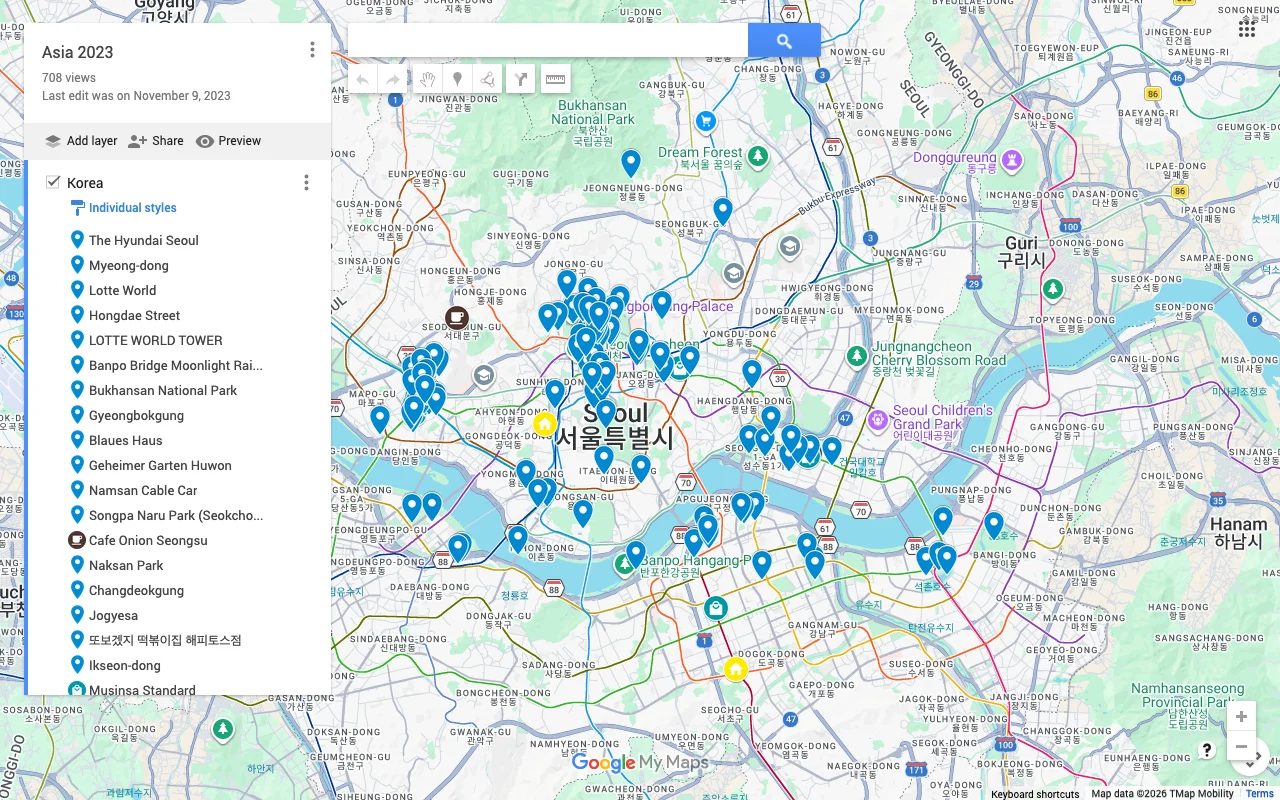
My Maps makes a custom, Google-Docs-style shared map that several people can edit at once. The catch is that editing only works on a desktop browser, so no one can add a place from their phone while they are out, which is when most good spots turn up.
My Maps is collaborative in a way the standard Maps lists are not. Several people can edit the same custom map, you can draw layers and style pins, and changes are shared rather than trapped with one owner. For a group that plans from laptops, sitting down together to build out a detailed map before a trip, it can work well.
The desktop-only editing is the real limitation, and it is a big one for travel specifically. The best recommendations tend to arrive when you are already out: a local points you to a bar, you walk past a bakery with a line out the door, a friend texts a place from two streets over. If adding it means “wait until I’m back at a laptop”, most of those spots never make it onto the map. My Maps also has structural ceilings on how many layers and items a single map can hold, so very large trip maps can bump into its edges. It is a desktop planning tool that does not follow you onto the trip.
Option 3: a live shared map anyone can edit
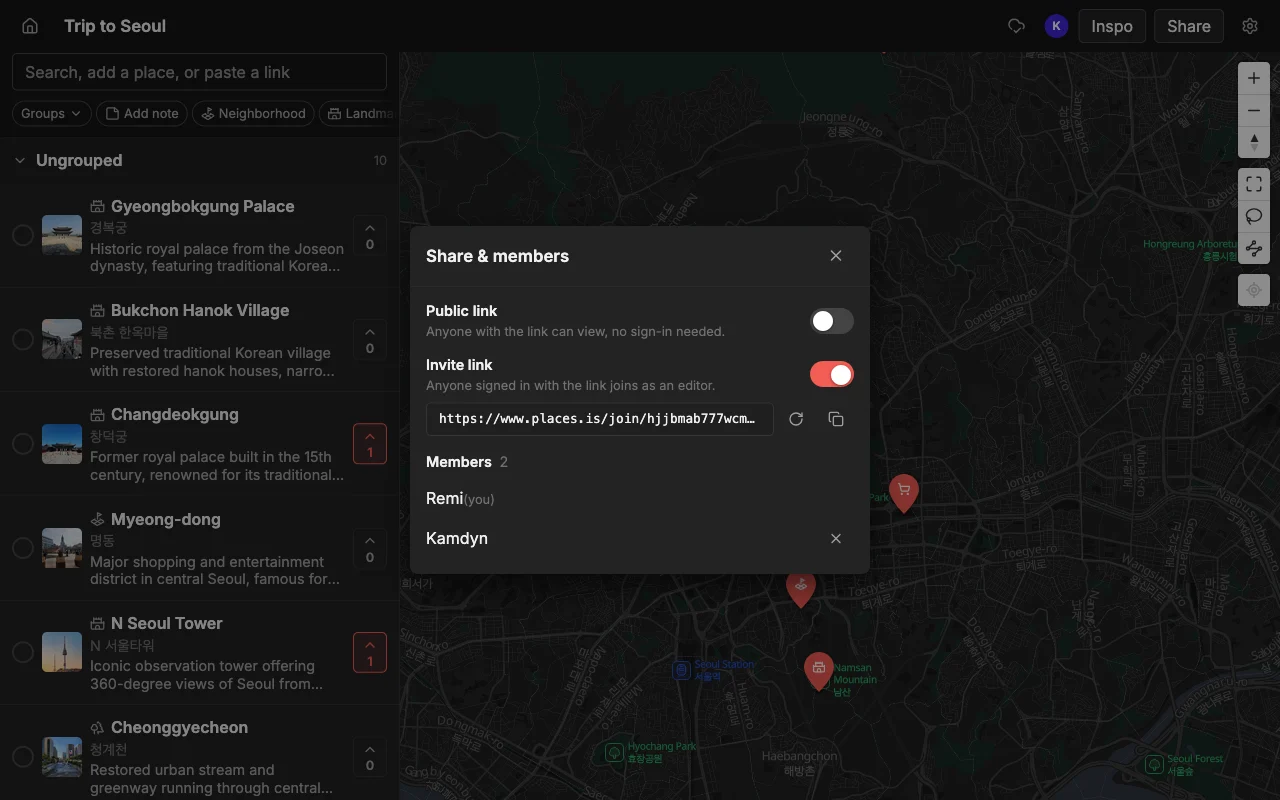
Places is built for sharing a map you plan on together. Share a read-only public link anyone can open without an account, or invite specific people to edit. Everyone edits the same map live on the web, iPhone, or Android, leaves a note and a color on each place, and votes on where to go.
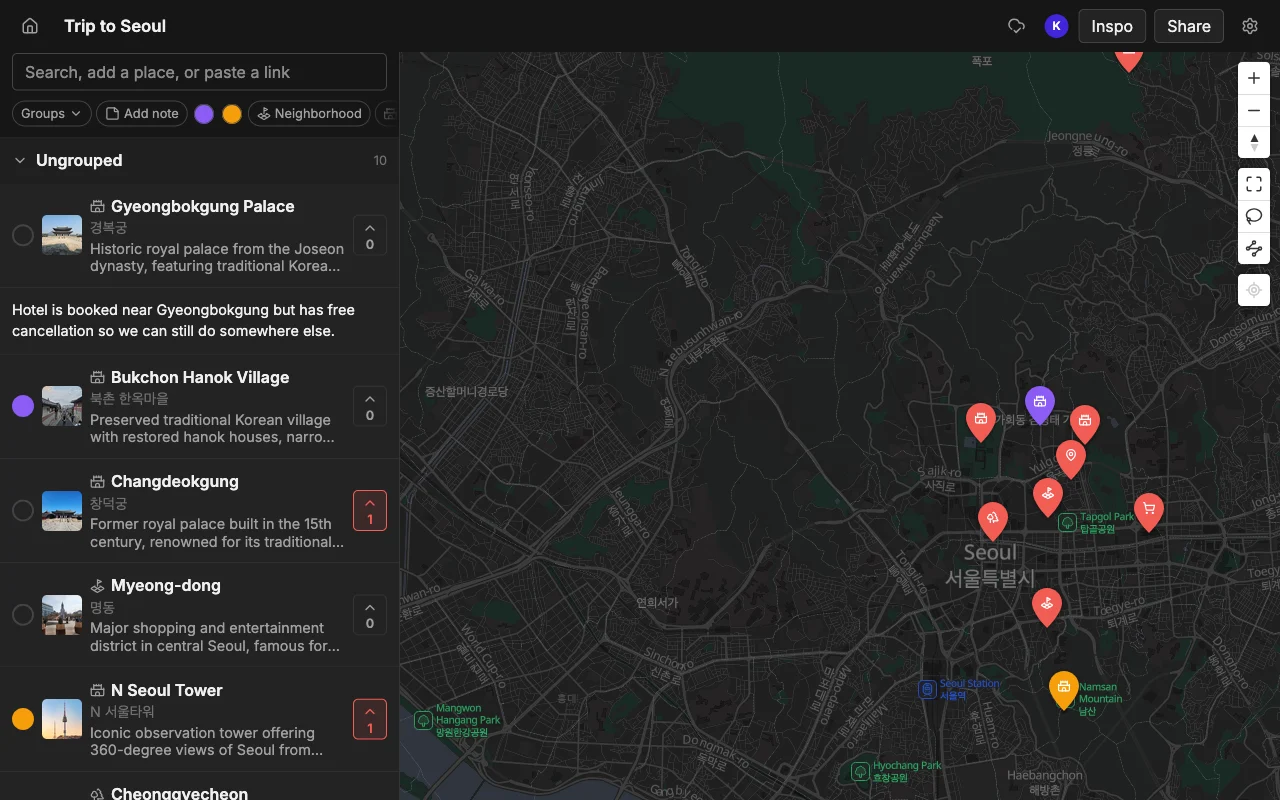
This is the option that does not force the view-versus-edit tradeoff. You share a read-only public link with the wider group, so anyone can open it with no account and no install, and you send an edit invite to the handful of people actually planning with you. Both come from the same map, so you are not maintaining two versions. The people you invite are full contributors, not spectators: they add places, reorder the days, recolor pins, and leave notes, and every change syncs live to everyone else.
Because it runs on the web, iPhone, and Android, the “I’ll add it later” problem disappears. Someone can pin a place the moment they hear about it, from whatever device is in their hand, and it shows up for the group immediately. Voting turns the collected spots into an actual decision without a forty-message debate, and notes keep the useful context (“book ahead”, “cash only”, “skip the line at the side door”) right on the pin instead of buried in a chat. For a map the group builds and decides on together, this is the shape that holds up.
Which one to use
For a quick, look-only share, a Google Maps list link is fine. For a map the whole group actually builds and decides on together, a live shared map is the one that holds up, especially across a mix of iPhones, Android phones, and laptops.
The honest way to choose is to ask what you want people to do. If they only need to see your spots, send the list link and move on, there is no reason to overthink a read-only share. If a couple of people will plan from laptops and never touch it on the go, My Maps is workable. But the common case for travel, several friends on mixed devices adding and choosing places over days or weeks, is exactly where the first two options struggle and a live collaborative map is built to win.
A useful tie-breaker is to think about the worst moment, not the best one. Every option looks fine when one person shares a finished list. The differences only appear when a second and third person try to contribute from their phones while the plan is still changing. Choose for that moment, because that is where a travel map either stays current or quietly goes stale.
Add places without typing
However you share, you still have to fill the map. With Places you can paste a TikTok, an Instagram Reel, a YouTube video, or a travel article, and it pins each place automatically, so building the map to share takes minutes, not an evening.
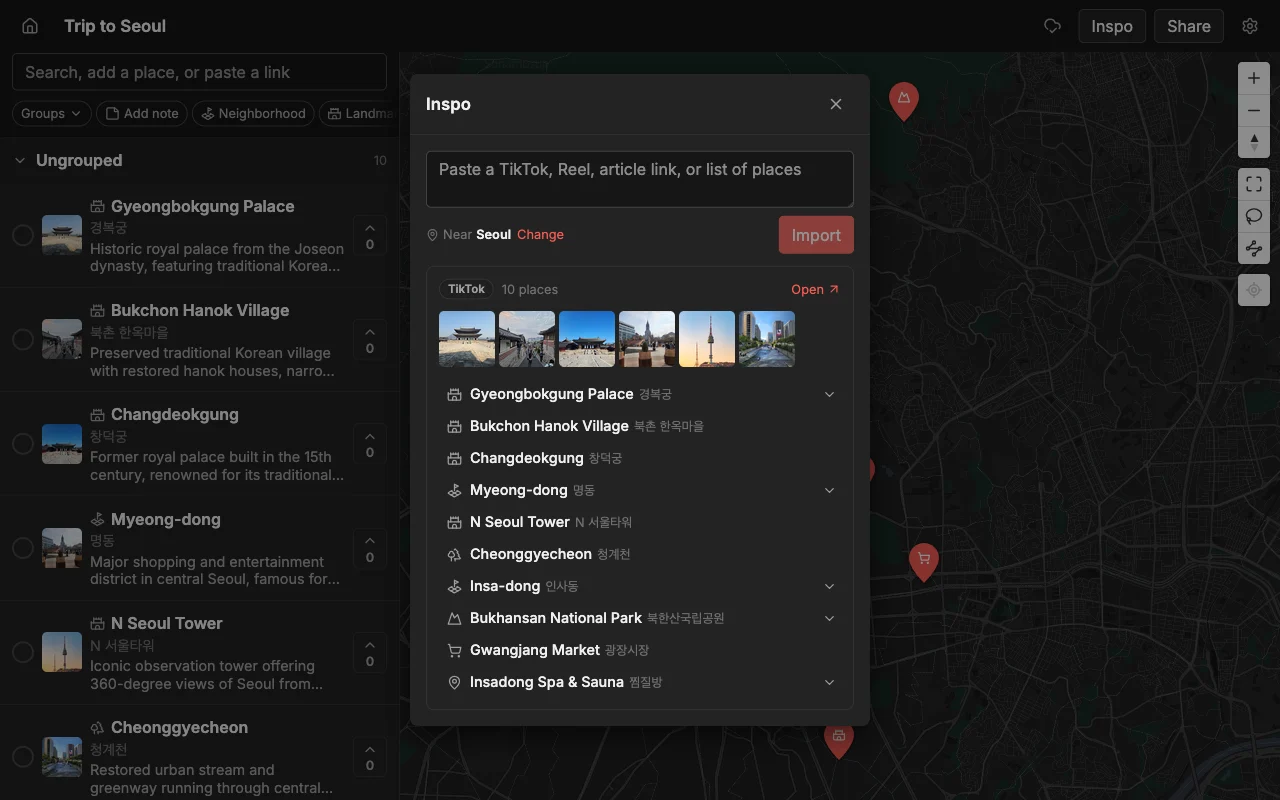
This is worth calling out because filling the map by hand is where most shared travel maps die. Retyping restaurant names, looking up each address, and dropping pins one by one is tedious enough that people give up halfway and the map never gets shared at all. Pasting a link you already found sidesteps all of it: the places arrive already pinned, with a photo and a short description, so the map is presentable from the first paste.
It also changes what you can share and how quickly. Instead of a sparse map with three pins, you can hand friends a genuinely useful starting point built from the videos and articles you were already sending each other, and they can add their own the same way. Once the map is full and shared, you can also export it to KML, CSV, or PDF if someone wants it elsewhere, and the KML file opens straight in Google Maps for anyone who prefers to navigate there.
Frequently asked questions
- What's the best way to share a travel map friends can edit?
- Use a live collaborative map. Share a read-only public link for anyone to view without an account, and send an edit invite to the people planning with you. Everyone then edits the same map in real time from the web, iPhone, or Android.
- Why can't my friends edit my Google Maps shared list?
- Collaborative editing on Google Maps lists is unreliable, and invitees often end up stuck able to view but not add. There is more on why shared lists misbehave here. A purpose-built collaborative map avoids the view-only trap by giving edit access to everyone you invite.
- Can people open the map without an account?
- Yes. A read-only public link opens for anyone with no account and no install, which makes it the right thing to send a big group. An account is only needed to actually edit the map.
- Can we all add places from our phones?
- Yes, with a live shared map that works on iPhone and Android as well as the web. That is the main advantage over Google My Maps, which lets several people edit but only from a desktop browser, so nobody can add a spot while out.
- How do we decide where to go once everyone has added places?
- Vote on the pins. Each person's preferences show up on the map, so the group narrows a long list down to a plan visually instead of arguing in the chat. Notes on each place keep the details that swing the decision right where you can see them.
- Can I move the shared map into Google Maps or a spreadsheet?
- Yes. Export the map to KML, CSV, or PDF. The KML file imports into Google Maps so you can navigate there, and CSV is handy if someone wants the list in a spreadsheet.