Google Maps shared list not working? How to fix it, and its limits
Updated July 11, 2026
You shared a Google Maps list so a few people could plan together, and something broke. Maybe your friend swears they can only view it, maybe the list never turned up in their Saved tab, or maybe the places you both added are not showing up for each other. If it feels like the feature is fighting you, that is a common and completely reasonable read. Shared lists work often enough to seem reliable, then fail at the worst moment.
Most of these problems fall into a handful of patterns, and several of them do have fixes, or at least reliable workarounds. It helps to know which case you are in before you start poking at settings, because the fix for a permissions problem is different from the fix for a list that never syncs. This guide sorts the common failures into three buckets and walks through each one step by step.
It is also worth being honest about the ceiling. Some of what goes wrong is not a bug you can fix but a limit of how lists are built, and no amount of re-sharing will change it. So after the troubleshooting, this guide covers the things lists simply cannot do, and what a purpose-built shared map like Places does differently, so you can decide whether to keep patching or switch to something built for group planning.
Fix: invited to edit but stuck read-only
This is one of the most common issues, and it is almost always a permissions or invite problem rather than a broken account. The share can default to view access rather than edit, and the invite email frequently reads View on Google Maps, so the person taps through and lands in a read-only view without ever being offered a way to contribute. They see all your pins but cannot add their own, and nothing on screen explains why, so it looks like the list is just not editable.
Work through these in order, because the fix is usually one of them:
- As the list owner, open the share settings and set the person’s role to editor explicitly, then re-share. A view-only default is the usual culprit, and changing it is what actually grants edit rights.
- Have them open the invite from the original email, not a link someone forwarded in a group chat. Forwarded links can carry the wrong context and drop them into view mode.
- Make sure they are signed into the exact same Google account the list was shared with. If they have multiple accounts, a personal and a work one for example, they may be viewing while signed in as the wrong identity.
If it still will not stick after all three, have the person remove themselves from the list and re-accept a fresh invite, and confirm on your end that their editor role saved rather than silently reverting. Edit access on lists is known to drop on its own, so a role that looks set is worth double-checking.
Fix: the shared list doesn’t show up
The second common failure is a list that never appears for the person you shared it with. They accepted, they are on the right account, and still nothing turns up. Because there is no pending-invite screen or clear status to check, this one feels like shouting into a void, but a few steps clear it more often than not.
Try these:
- Ask the other person to look under Saved, then Lists, and pull down to refresh. Shared lists live in a separate section from their own saved lists, and it is easy to look in the wrong spot.
- Have them sign out and back in. This forces the app to re-fetch shared content and very often makes a stubborn list finally appear, which tells you the data was there and the client just was not showing it.
- Double-check you shared it to the address they actually use. Sharing to an old or alternate email is a frequent cause, and the invite goes to an inbox nobody checks.
- Give it time. Desktop and mobile can be slow to sync with each other, and a list added on one sometimes takes a while to propagate to the other, so waiting and refreshing later can resolve it on its own.
If none of that works, the most reliable fallback is to delete the share entirely and start a clean one: remove the person, confirm the list itself is set to shared, and send a new invite to their confirmed address. It is blunt, but a fresh share sidesteps whatever stale state was blocking the first one.
Fix: my edits aren’t showing for everyone
The third pattern is not really a bug you can fix, and it is important to understand so you stop chasing it. Google Maps lists are not real-time. When someone adds or removes a place, other people usually will not see the change until they refresh, reopen the app, or in some cases sign out and back in. There is no live sync happening in the background, so a gap between when you edit and when others see it is expected behavior, not a fault on anyone’s device.
The practical consequence is that group planning at the same moment is awkward. If two of you are adding restaurants across a table, you are each editing a slightly stale copy, and the merged result only becomes visible after a manual refresh. Places can also appear out of order, or seem to briefly vanish and reappear, as the app reconciles what each person added. The fix, such as it is, is a habit: agree that everyone refreshes before assuming the list is current, and treat it as an eventually-updated list rather than a live shared one.
If real-time editing is the thing you actually need, no setting inside Google Maps lists will provide it, because the feature was not built to sync live. That is the point at which a different tool starts to make sense rather than more troubleshooting.
The limits no fix can solve
Beyond the sync lag, some things are simply not possible with shared lists, no matter how you configure them. These are design limits, not bugs, so it is worth knowing them before you invest more time:
- You cannot copy a shared list into your own editable one. You can only follow it, so it stays someone else’s list and you cannot fork it, trim it, or make it your own.
- You cannot search within a list, so a long list means scrolling, and on iOS you cannot even sort it alphabetically to make scanning easier.
- There is no voting to decide as a group, so narrowing a long list down to an actual plan happens somewhere else, usually a separate chat.
- Public lists are gone, removed in November 2023, so there is no real discovery of curated lists anymore and any public list you built before then no longer shares that way.
- The map view is buried behind the list, even though seeing all your pins together on the map is usually the whole reason you are planning geographically.
If you need sharing that actually works
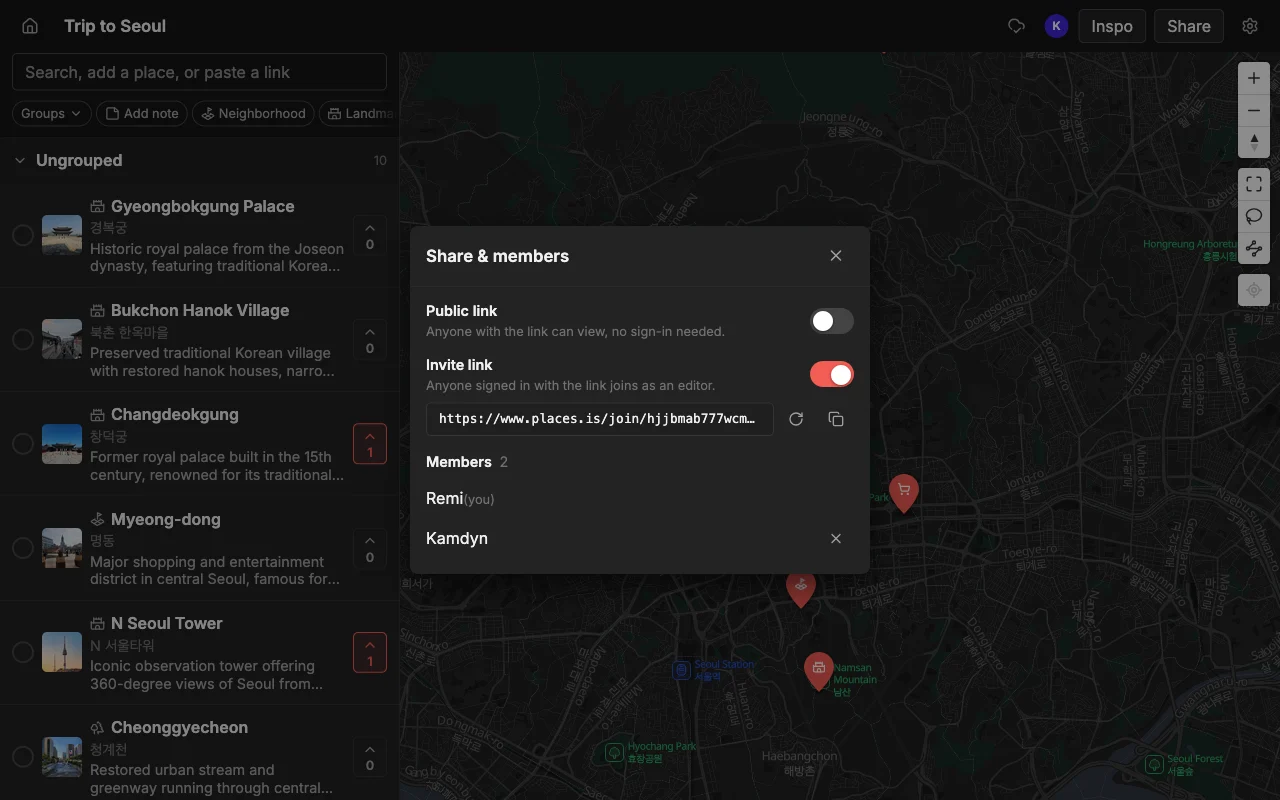
When the entire point is to plan together, a purpose-built shared map sidesteps all of the above rather than working around it. Real-time editing means changes appear as they happen, so nobody has to refresh or sign out and back in to see what someone just added, and there is no ambiguous invite that traps people read-only. You either share a read-only public link that anyone can open without an account, or you invite people to edit, and edit means edit.
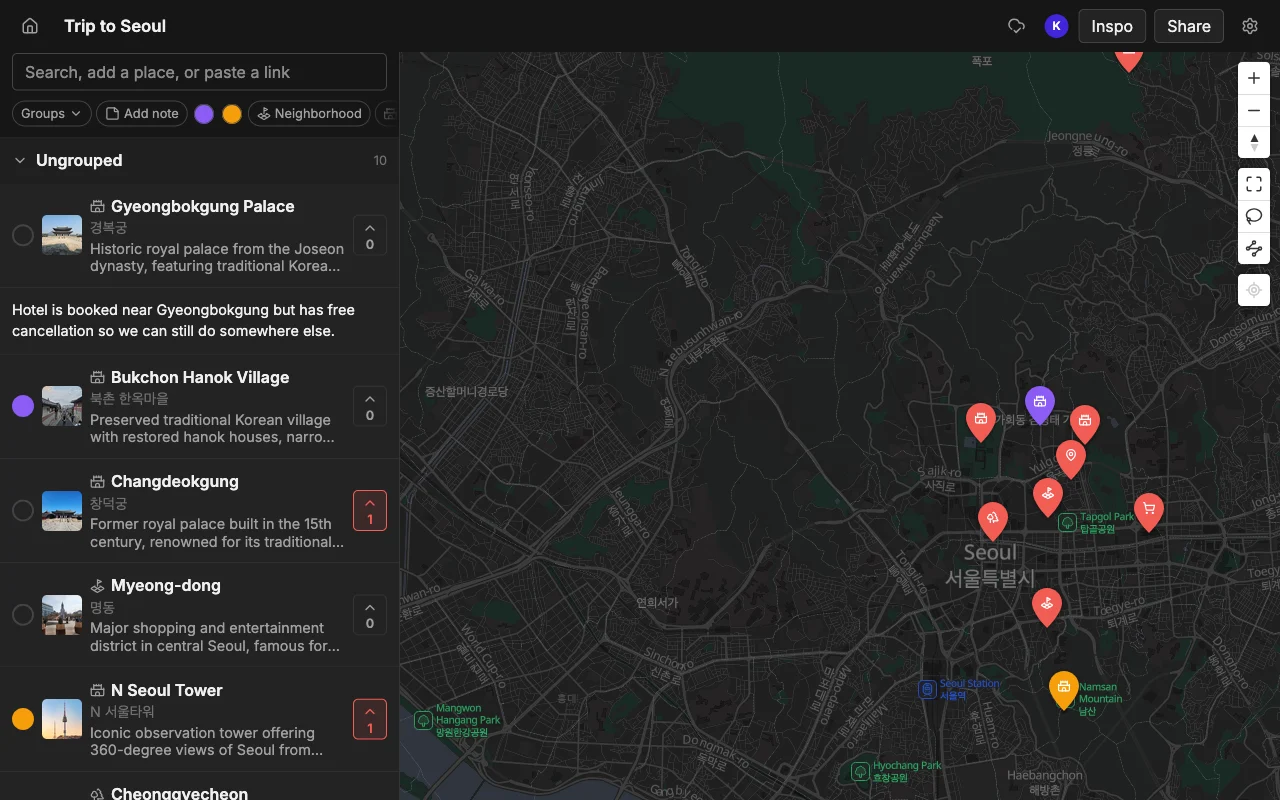
Places is built for exactly this. Everyone gets live editing on the web, iPhone, and Android, with a note and a color on each place and voting so the group can decide together instead of debating in a side chat. You can paste a TikTok, a Reel, a YouTube video, or an article and have every place pinned automatically with a photo and description, and when the plan is set you can export it to KML, CSV, or PDF, with the KML opening straight in Google Maps for anyone who still wants to navigate there. It is free to start, with unlimited maps, places, and collaborators.
For more on how lists behave, see can you edit a Google Maps list with friends?, or see how the two stack up in Places vs Google Maps lists.
Frequently asked questions
- Why is my Google Maps shared list not working?
- The three common causes are: the invite defaulted to view access so the person is stuck read-only, the list never propagated to their Saved tab, or edits are not showing because lists are not real-time. Each has a different fix. Set the role to editor and re-share for permissions, have them sign out and in for a missing list, and expect a refresh lag for edits, since there is no live sync.
- Why can my friend only view a Google Maps list I shared for editing?
- Usually because the share defaulted to view, or the invite email read View on Google Maps and dropped them into read-only mode. Set their role to editor explicitly and re-share, have them open the invite from the original email rather than a forward, and confirm they are signed into the same Google account you shared with.
- Why isn't the shared list showing up in Saved?
- Have them check under Saved then Lists and pull to refresh, since shared lists sit in a separate section. If it is still missing, having them sign out and back in usually forces it to appear, and confirm you shared it to the email address they actually use. Desktop and mobile can also be slow to sync, so give it time.
- Do Google Maps shared lists update in real time?
- No. When someone edits a shared list, others generally will not see the change until they refresh, reopen the app, or sign out and back in. There is no live sync, so plan for a lag and agree that everyone refreshes before assuming the list is current. If you need live editing, a real-time shared map like Places is a better fit.
- Can I copy a shared Google Maps list to edit my own version?
- No. You can only follow a shared list, not copy it into your own editable one, so it stays under the original owner's control. If you want a map you can freely copy, edit, and reorganize with a group, a purpose-built shared map handles that. See Places vs Google Maps lists.